 Email Administration: User guideDownload PDF manualBack to the portal
Email Administration
How to manage mailboxes, forwarders and automatic replies for every mail domain on the server from one place.
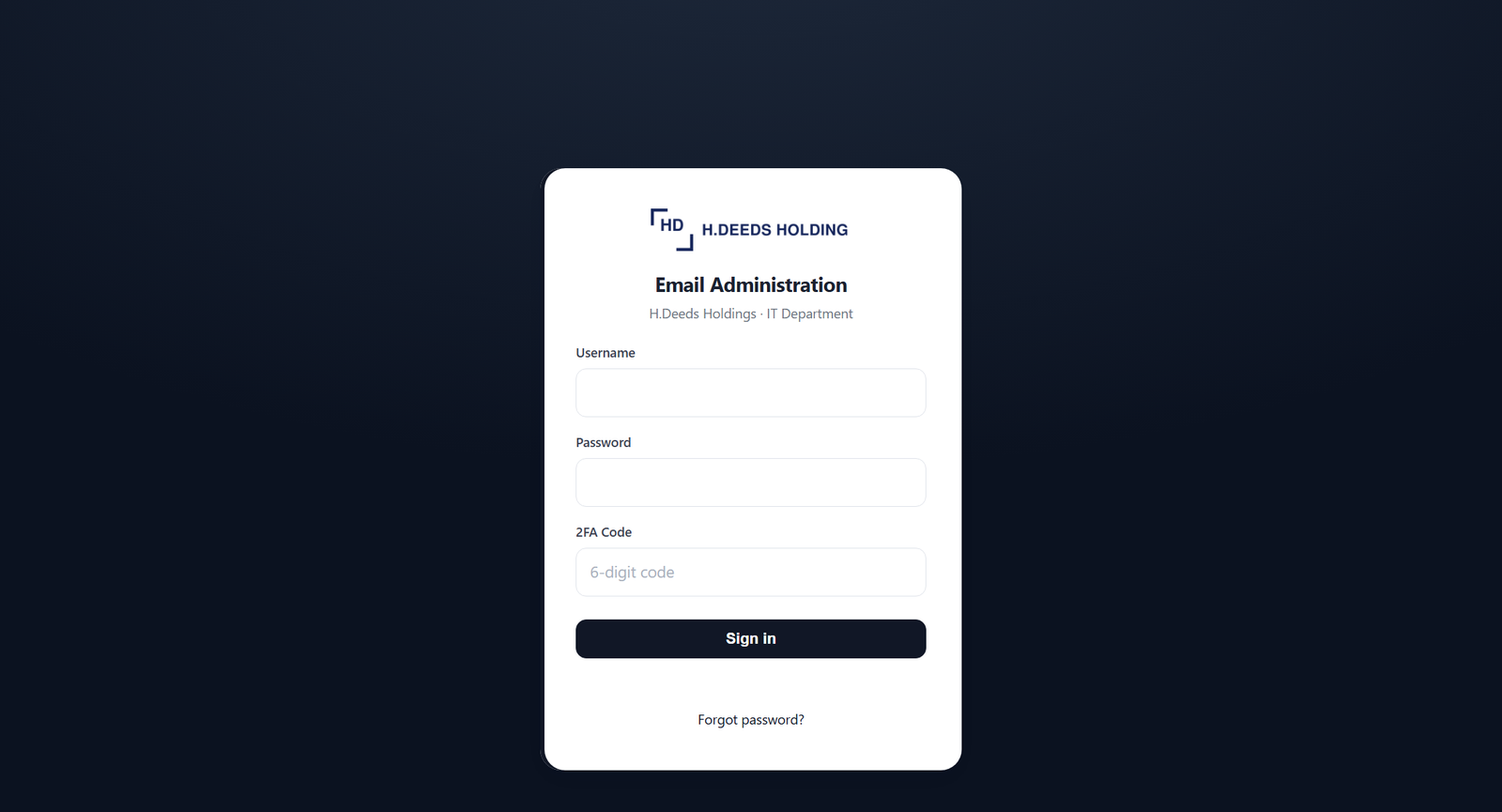
1. Signing in
- Open the portal and enter your username, password and the current 6-digit 2FA code from your authenticator app.
- Select Sign in.
If you forget your password, choose Forgot password?, confirm with your 2FA code and set a new one of at least 10 characters. What you can see after signing in depends on the permissions your portal admin gave you.
2. The workspace
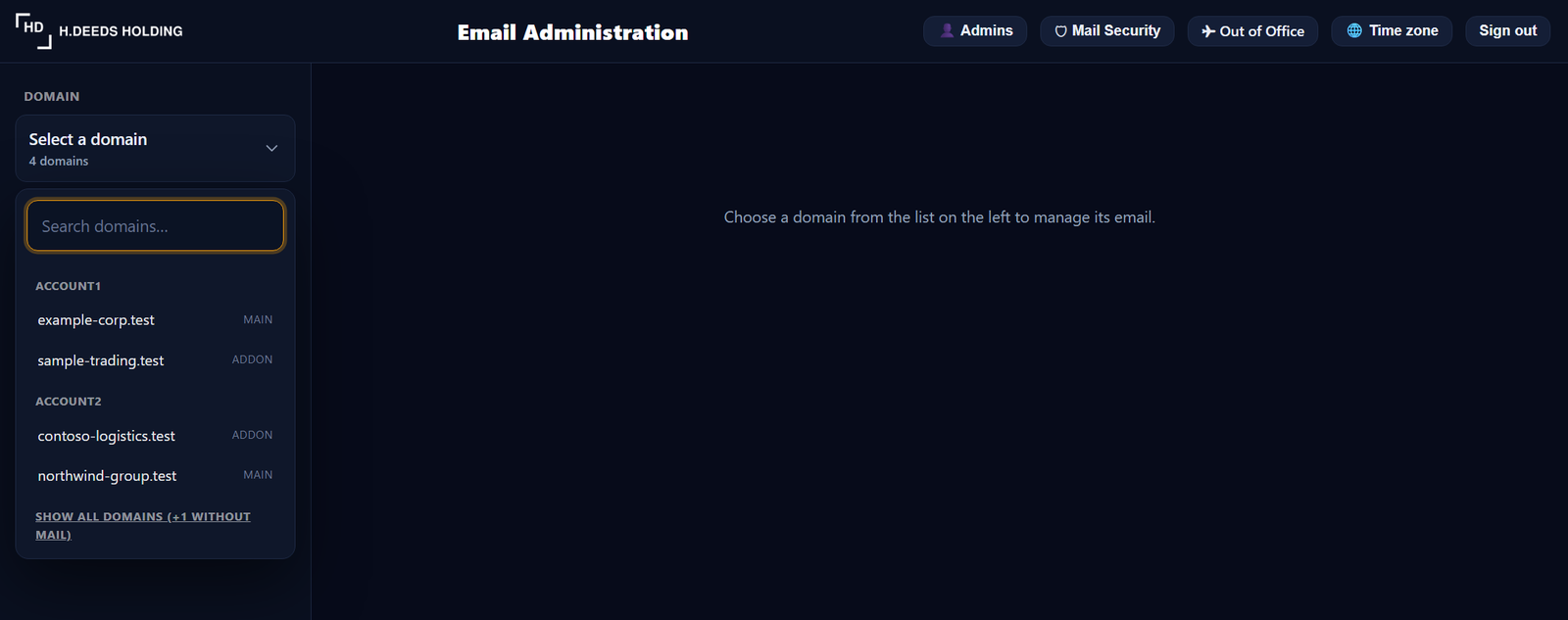
The screen has three parts.
- Top bar: Admins, Mail Security, Out of Office, Time zone and Sign out. A button only appears if you hold the permission for it.
- Sidebar: the Domain box at the top, then the three email sections: Email accounts, Forwarders and Autoresponders, and a link to this guide.
- Main area: the section you chose, for the domain you chose.
3. Choosing a domain
- Select the Domain box in the sidebar. A list opens, grouped by hosting account.
- Type part of a name in Search domains to narrow the list, then select the domain. Pressing Enter picks the first match.
The list normally shows only domains that carry mail. Choose Show all domains at the bottom of the list to include the rest. The portal remembers the last domain you worked on and reopens it next time.
4. Email accounts
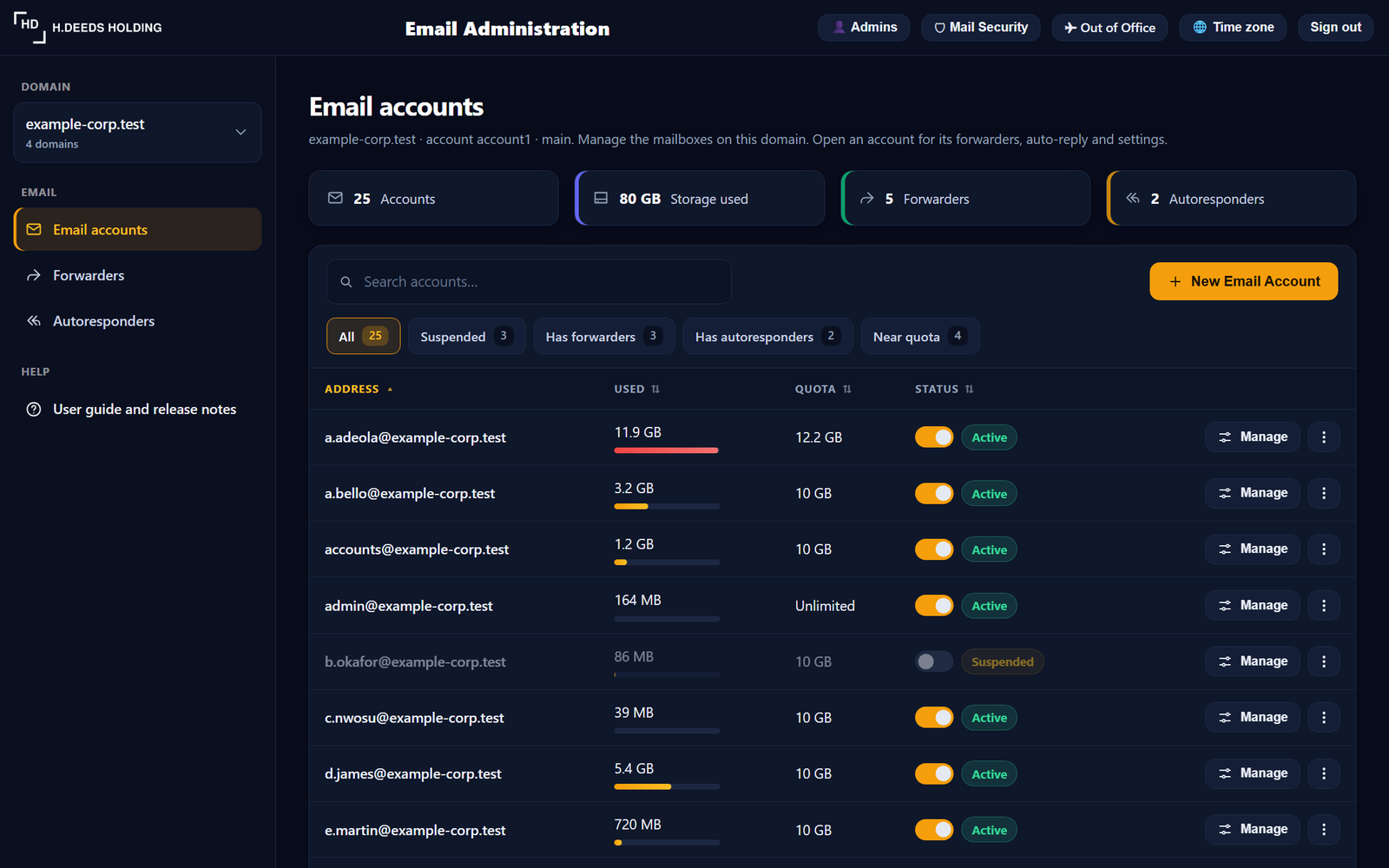
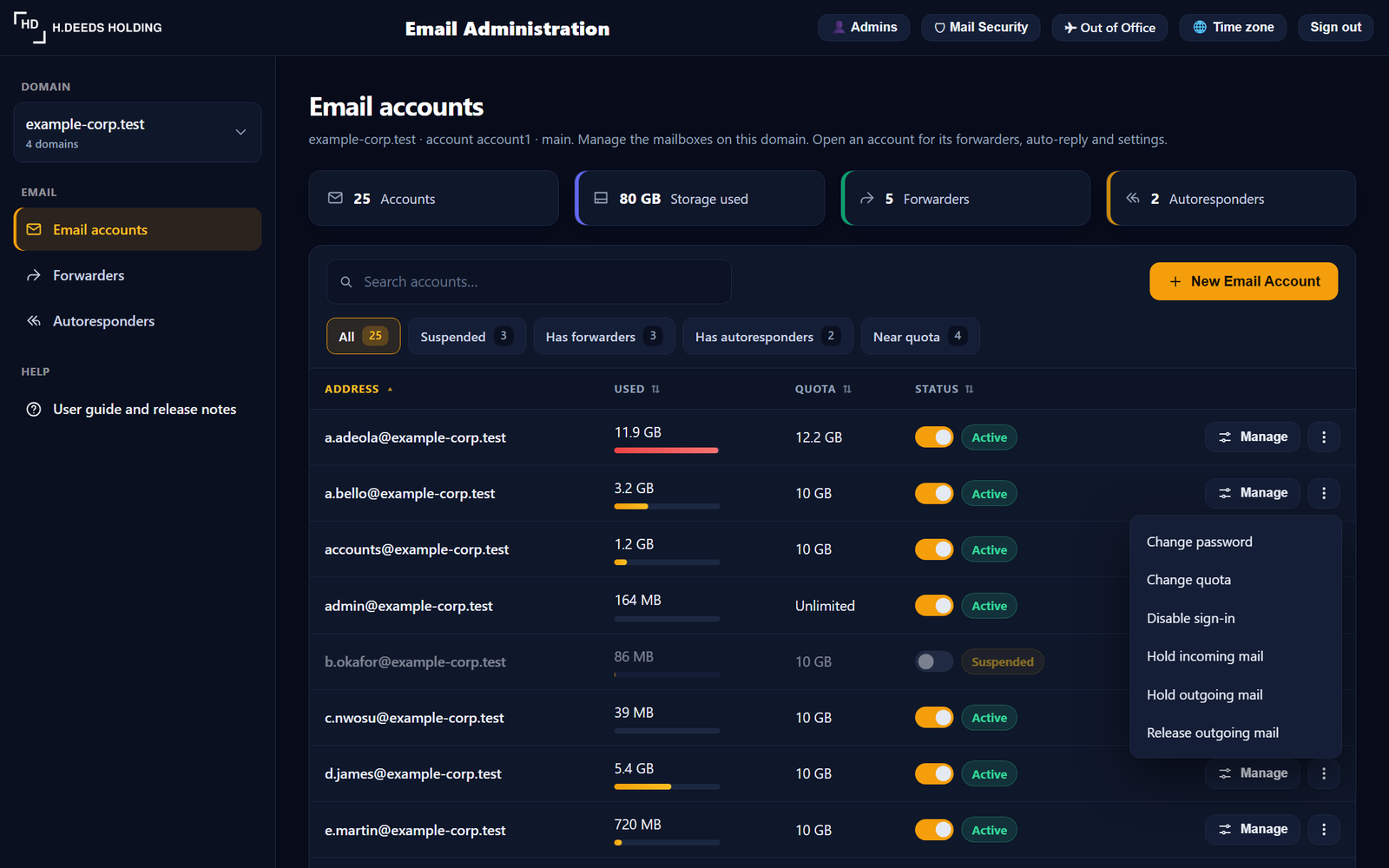
The tiles at the top show how many accounts, how much storage is used, and how many forwarders and autoresponders the domain has.
Finding accounts
- Search accounts filters the list as you type.
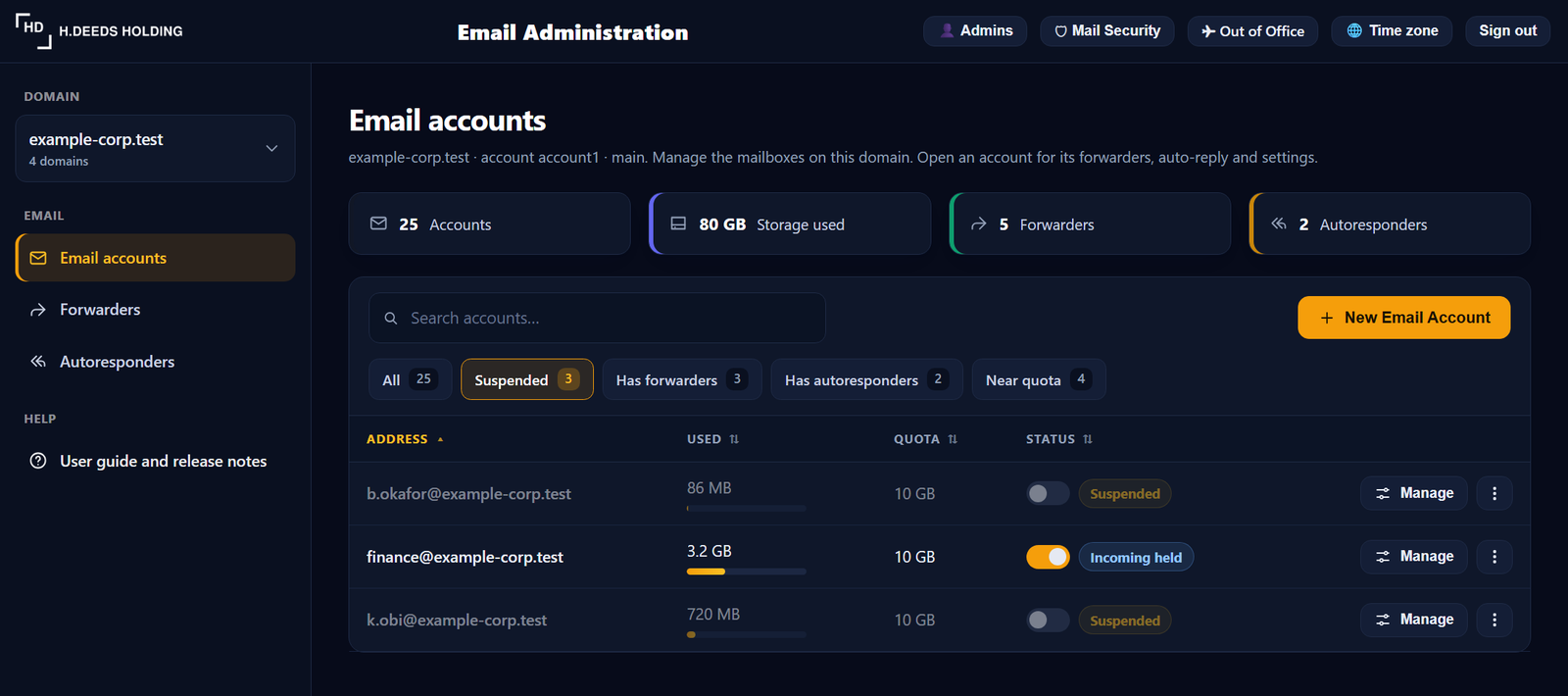
- The buttons under the search box show one group at a time, each with a count: All, Suspended, Has forwarders, Has autoresponders and Near quota (90% of the storage limit or more).
- Select a column heading (Address, Used, Quota, Status) to sort by it. Select it again to reverse the order.
What each row shows
| Column | Meaning |
|---|---|
| Address | The mailbox address. Select it to open the account. |
| Used | Storage in use, with a bar that turns red at 90%. |
| Quota | The storage limit, or Unlimited. |
| Status | A switch and a label: Active, Suspended (sign-in disabled) or Incoming held. |
Quick actions
- The switch turns sign-in for the mailbox off or on. The portal asks you to confirm first.
- Manage opens the account (see section 6).
- The three-dot menu offers: Change password, Change quota, Disable or Enable sign-in, Hold or Release incoming mail, Hold outgoing mail and Release outgoing mail.
5. Creating an account
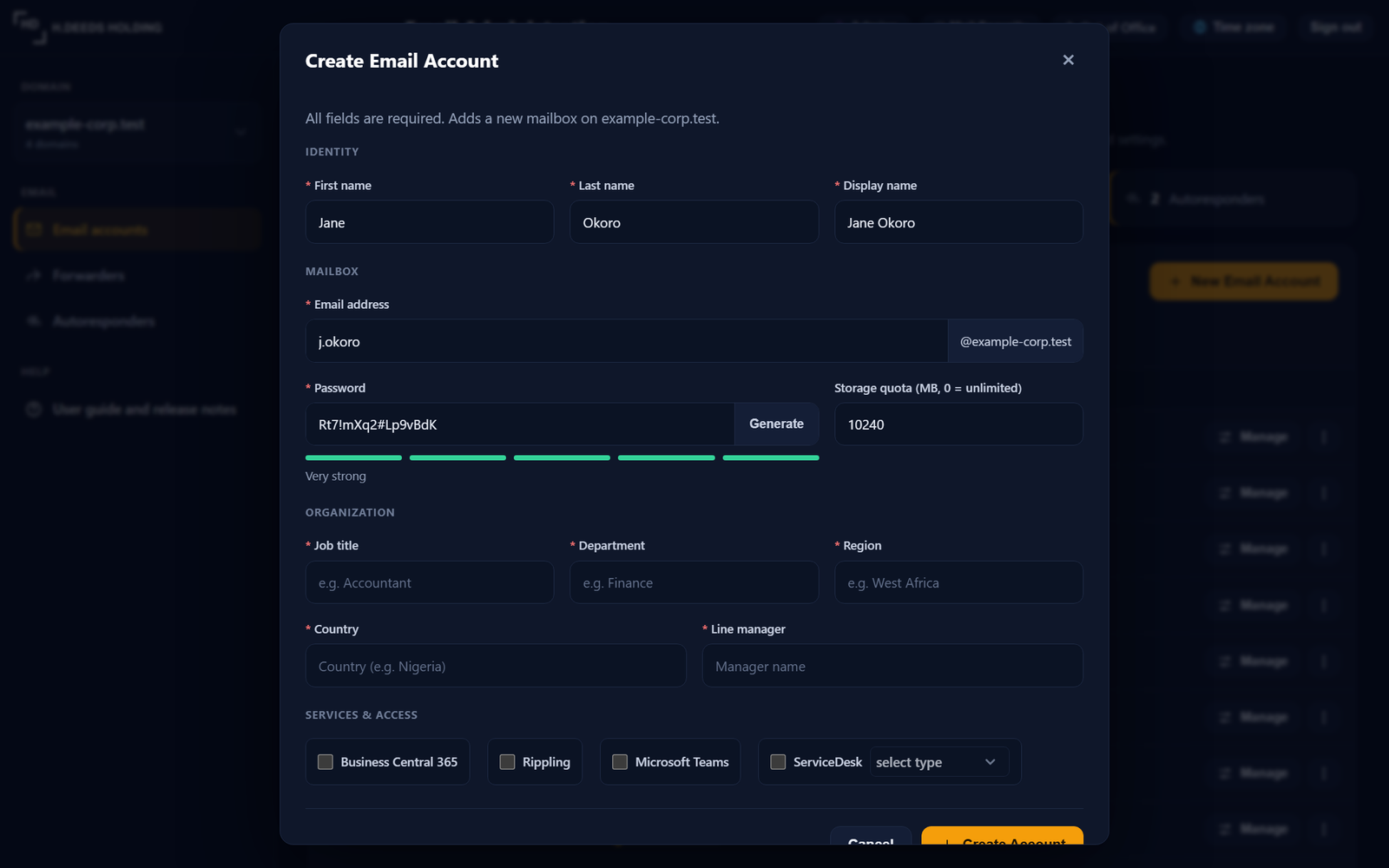
- In Email accounts, select New Email Account.
- Fill in Identity (first name, last name, display name) and Mailbox (the part of the address before the @, and a password).
- For the password, type one of at least 10 characters or select Generate. The bar underneath shows how strong it is.
- Set the storage quota in MB. The default is 10240 (10 GB); 0 means unlimited.
- Where shown, complete Organization (job title, department, region, country, line manager) and tick the Services and access the person needs.
- Select Create Account.
Every field marked with a red asterisk is required. The dialog stays open if you click outside it, so nothing you typed is lost; use Cancel or the X to close it. Some domains show only the Identity and Mailbox sections.
6. Managing one account
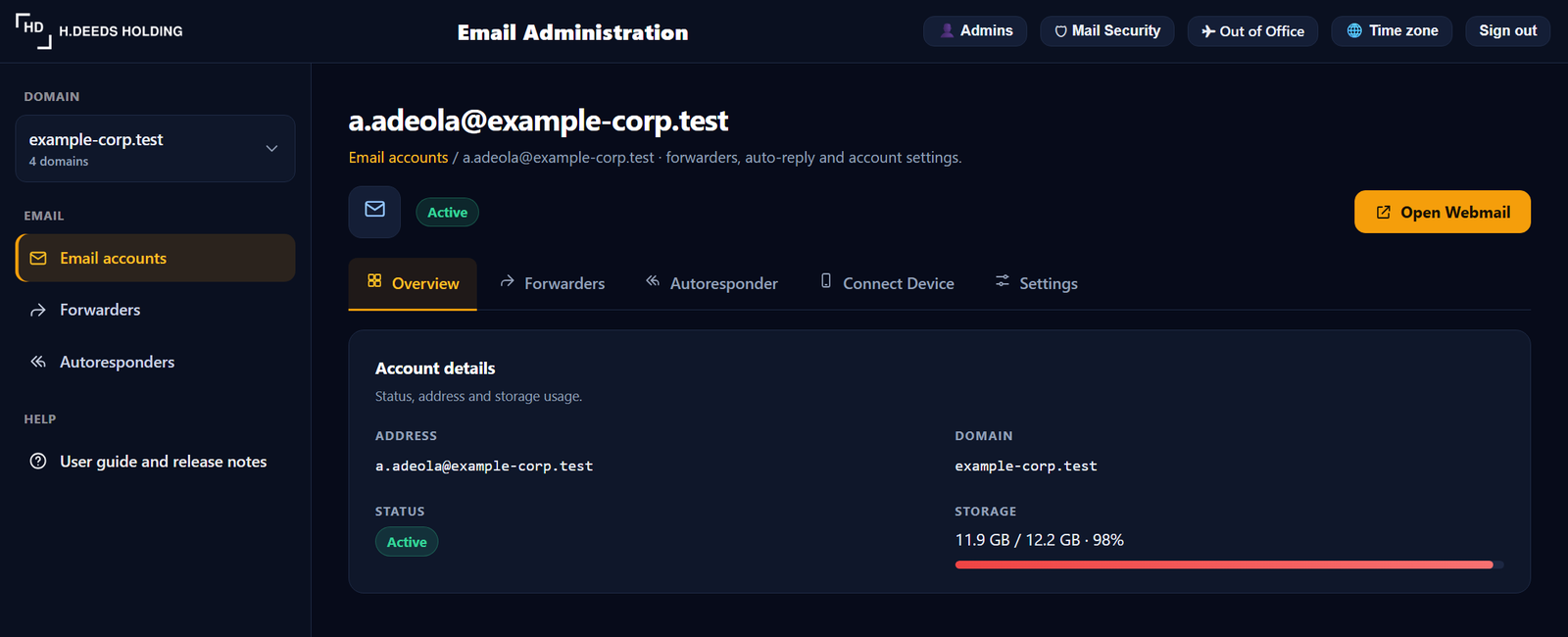
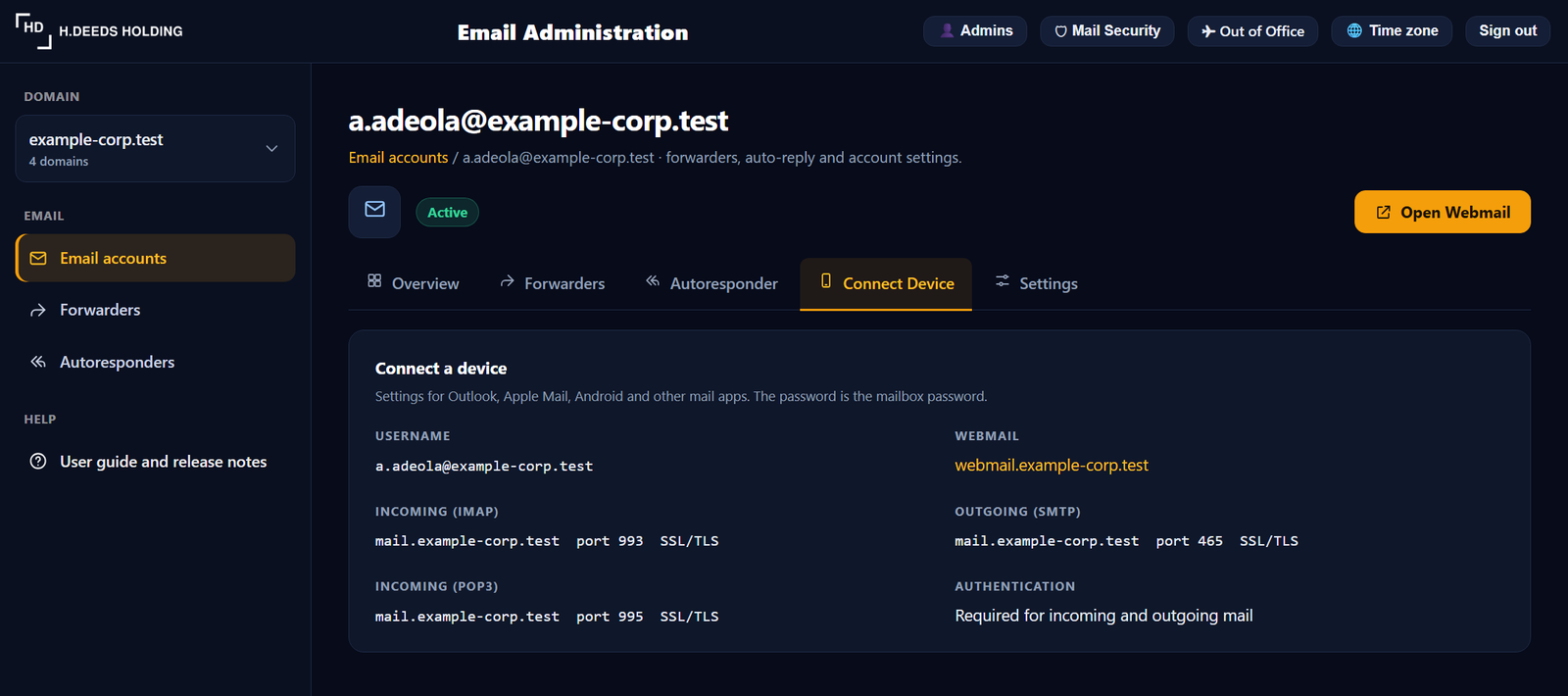
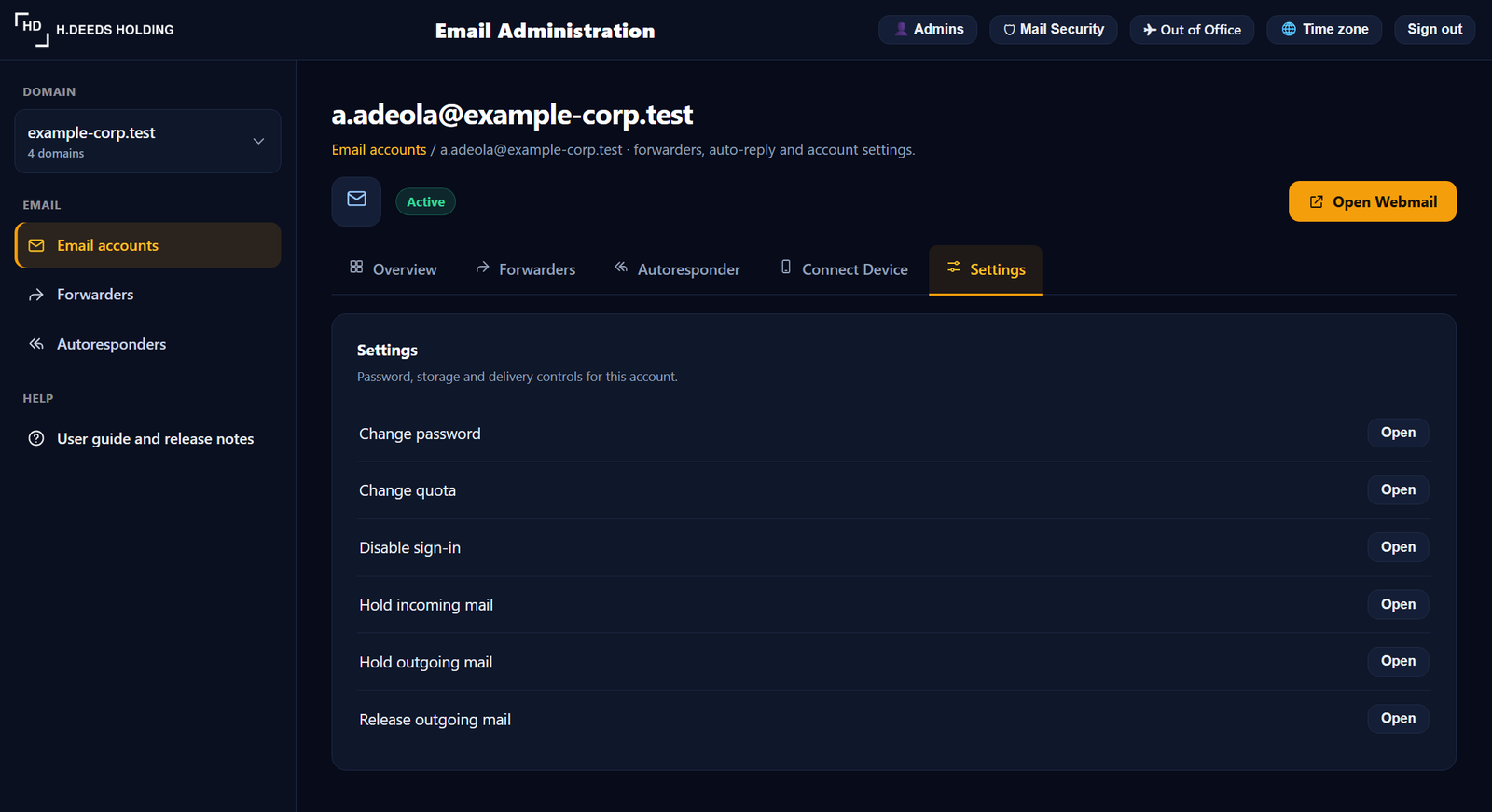
Select an address or its Manage button. Use Email accounts in the line under the title to go back to the list. Open Webmail opens the webmail sign-in page for that domain in a new tab.
| Tab | What you can do |
|---|---|
| Overview | See the address, domain, status and storage used against the quota. |
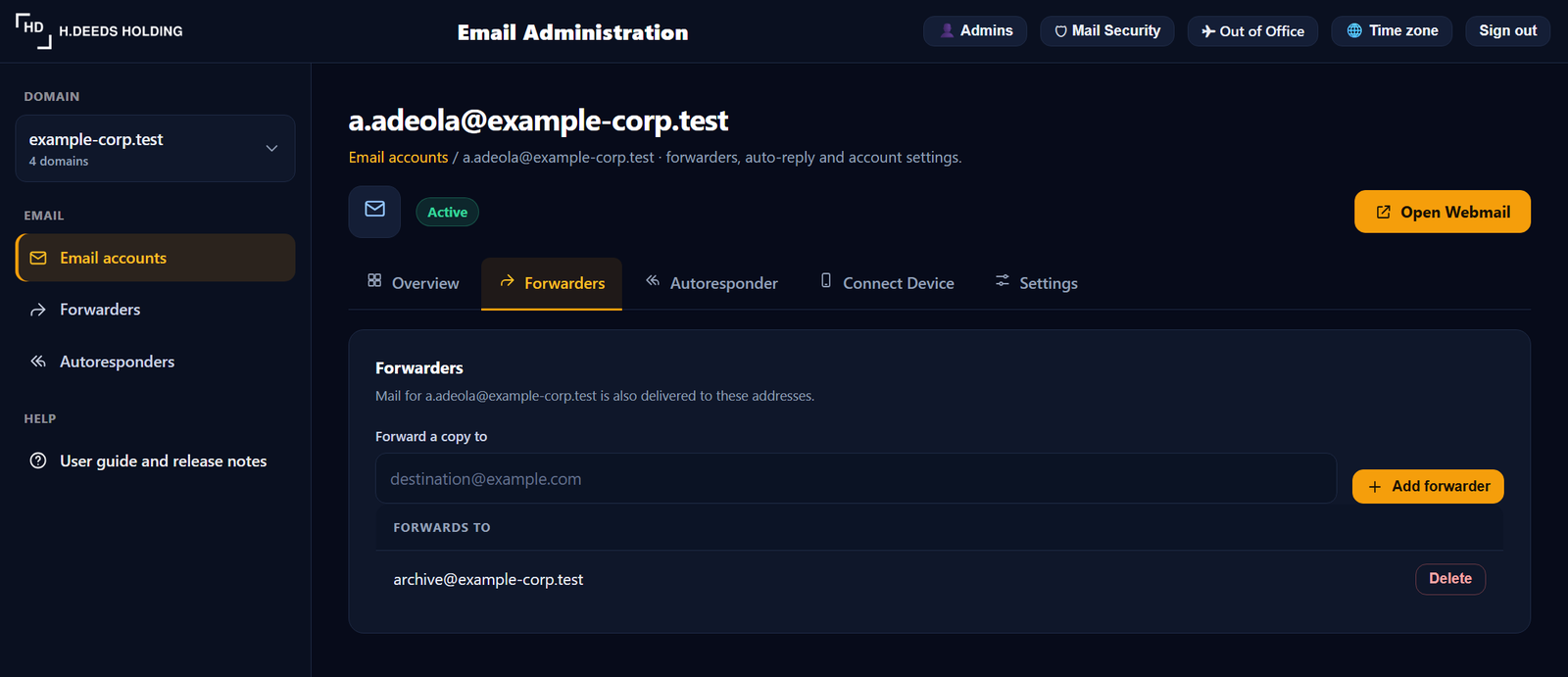
| Forwarders | See where this mailbox forwards to, add a destination, or delete one. |
| Autoresponder | Set an automatic reply with a subject and message, or remove the one that is active. |
| Connect Device | The username, webmail address and the incoming and outgoing server settings to give the user for a mail app. |
| Settings | Change password, change quota, disable or enable sign-in, hold or release incoming and outgoing mail. |
7. Forwarders
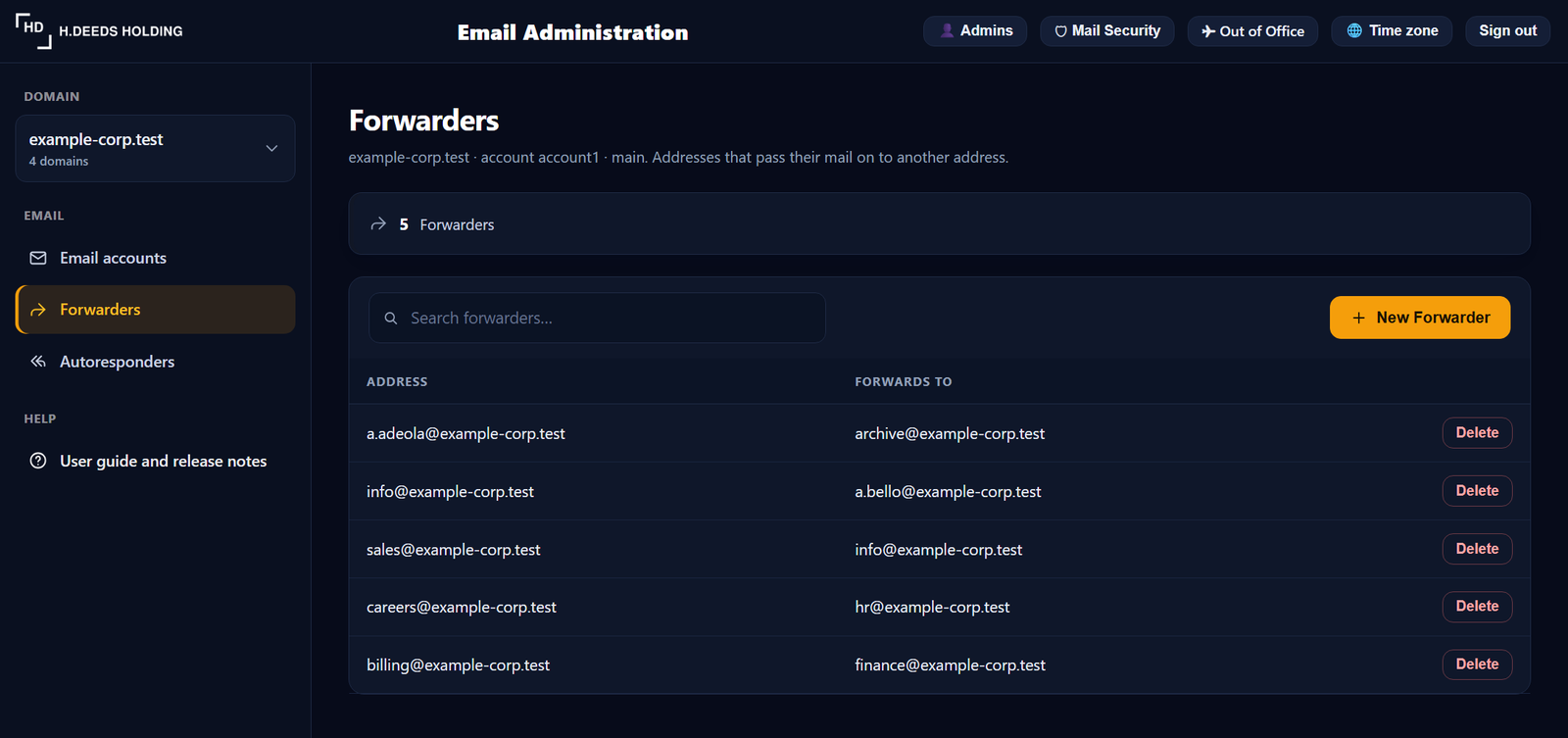
The Forwarders section lists every forwarder on the domain, including addresses that have no mailbox of their own.
- Select New Forwarder.
- Enter the address to forward (the part before the @) and the full destination address.
- Select Create Forwarder.
Use Delete on a row to remove a forwarder. Use the search box to find one in a long list.
8. Autoresponders
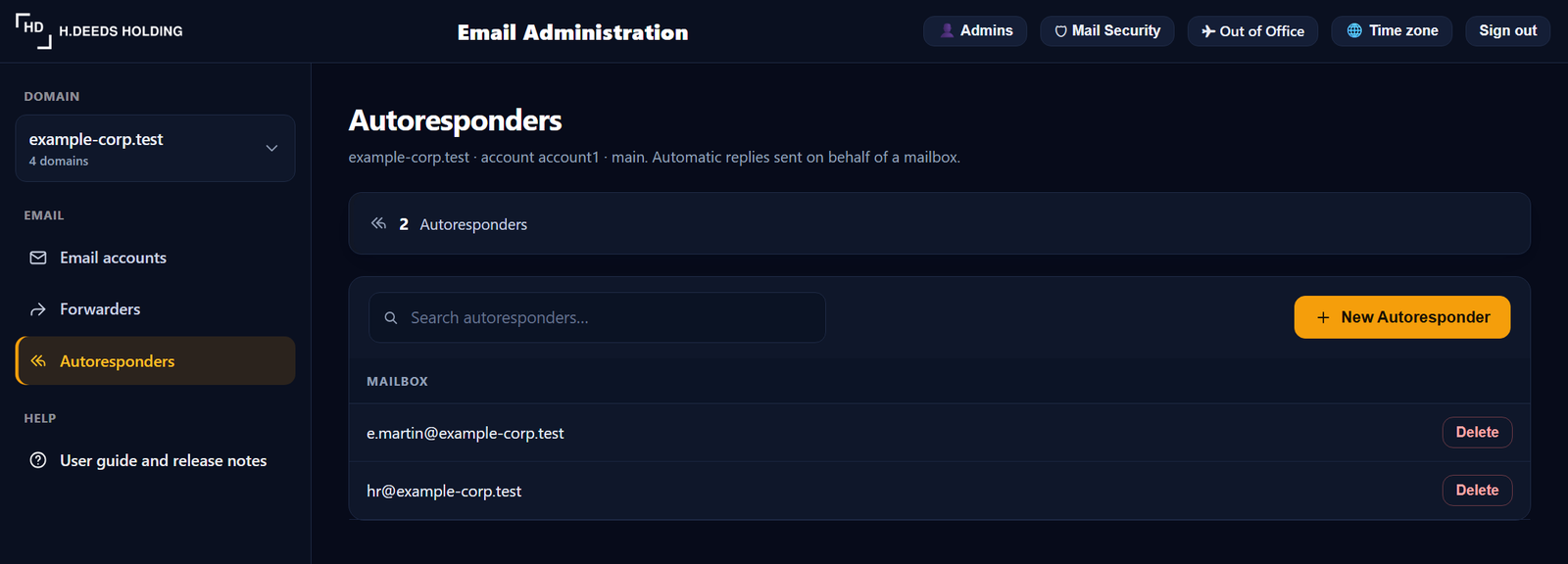
- Open Autoresponders and select New Autoresponder.
- Enter the address, a subject and the message.
- Select Create Autoresponder.
Use Delete on a row to switch one off. Staff can also set their own out of office message from the Out of Office button in the top bar.
9. Mail Security
Available to admins with the Mail Security permission, from the top bar. Its tabs cover spam review, the quarantine, approved and blocked senders, the inbound queue, the event log, statistics, service health and settings. Use the button at the top left of that screen to return to the mailboxes.
10. Portal admins
Available to admins with the Admins permission, from the top bar. Here you add portal users, choose which sections each one may use, limit a user to one hosting account, reset their sign-in and disable or remove them.
This instance is running build v26.0.1.95 (2026-10-17).
Release notes
- Sign-in: the verification code boxes accept letters as well as digits (the e-mailed codes mix both). The sign-in link in the email now works only in the browser where you started signing in; opened anywhere else it signs nobody in and asks you to open it on that computer or type the code there.
- Interface fixes: pressing Escape on a discard-changes prompt no longer throws away unsaved work; the sandbox bar asks before a refresh and reloads when its sandbox is refreshed or deleted; names shown in the document summary rail are escaped; the language switcher keeps form values and the saved language.
- User guide now has screenshots of every screen, and a branded PDF manual can be downloaded from the guide.
- New workspace: domain drop-down with search, sidebar navigation, account list with summary tiles, filters, sorting and a sign-in switch, a Manage view for each account, and dialogs for creating accounts, forwarders and autoresponders. User guide added.